Why duplicates happen (and why it matters)
Duplicates creep in silently. You screenshot a photo to edit it, WhatsApp saves a copy of every image you receive, you restore from a backup, or iCloud syncs during a migration — suddenly the same sunset photo exists three times in your Camera Roll.
A 2023 survey by Gemini Photos found the average iPhone user has over 8,500 photos, with roughly 1 in 5 being an exact or near-identical duplicate. At 3–5 MB per photo, that's potentially 5–8 GB of storage wasted on images you already have.
Apple introduced a native Duplicates album in iOS 16 (September 2022). If your iPhone runs iOS 16 or later, Method 1 below takes under 5 minutes and requires zero third-party apps. Check your iOS version under Settings → General → About.
Method 1 — iOS built-in Duplicates album (iOS 16+)
This is the fastest and safest method. Apple's algorithm compares content, not just filenames, so it catches identical photos even if they were renamed or saved at different times. It also merges metadata (edits, favourites, captions) from all copies into the best-quality version before deleting the rest.
Step-by-step
-
1
Open the Photos app
Tap the Photos app on your Home Screen. Make sure you're on the Albums tab at the bottom.
-
2
Scroll to "Utilities" and tap "Duplicates"
Under the Utilities heading (near the bottom of the Albums list), tap Duplicates. If you don't see it, iOS hasn't finished scanning yet — plug in and leave the Photos app open for a few minutes.
-
3
Review or merge all at once
Each group shows similar photos side by side. Tap Merge next to a group to keep the highest-resolution version and delete the rest. Or tap Select (top right) → Select All → Merge All to clear everything in one tap.
-
4
Empty "Recently Deleted"
Merged duplicates move to Albums → Recently Deleted and are held for 30 days before permanent deletion. To free up storage immediately, go there now and tap Delete All.
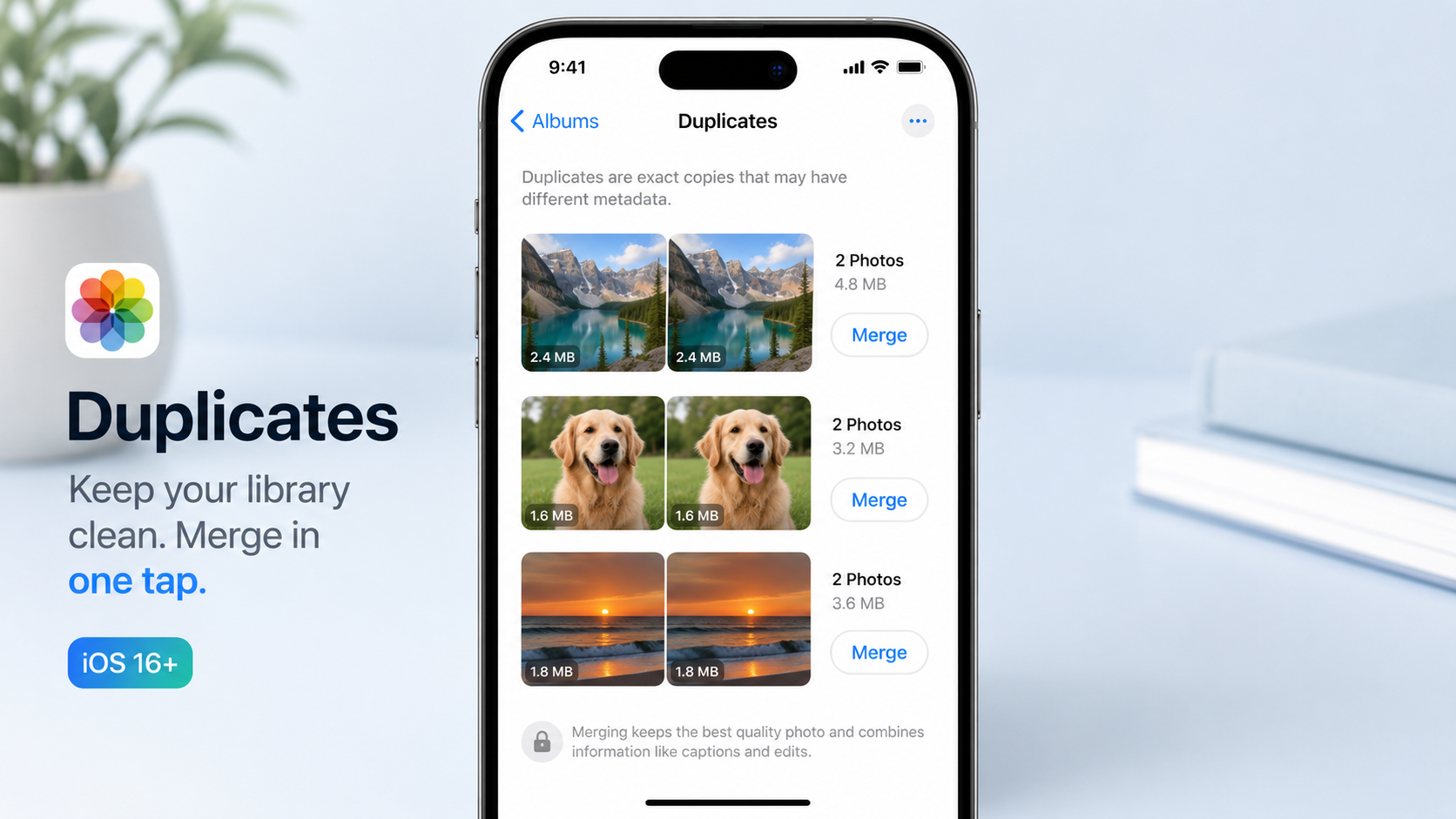
The Duplicates album in iOS 16+ groups identical photos side by side so you can merge them in one tap.
It keeps the highest-quality file, merges any edits or captions from the other copies, and moves the lower-quality duplicates to Recently Deleted. Your best photo survives — nothing is lost.
Three reasons this can happen: (1) your iPhone is running iOS 15 or older — update in Settings → General → Software Update; (2) iCloud Photos is processing new imports — wait a few hours; (3) you genuinely have no duplicates detected. Try Method 2 below as a fallback.
Method 2 — Manual review (works on any iOS version)
No built-in tool? Or you want to manually decide which version to keep? The Photos app has a hidden "trick" that makes this much faster than scrolling through thousands of photos individually.
Use "Days" view to spot burst clusters
Switch to Library → Days view. Photos taken seconds apart are grouped together, making burst shots and accidental double-captures visually obvious. Tap a group, then tap the dot selector (⊙) at the bottom to pick your favourite and delete the rest.
Search by date or event
Use the Search tab to find photos from a specific trip or event. Duplicates often cluster around holidays, concerts, or backups. Tap Select, scroll to find the duplicates, then delete.
Sorting by largest files first
Go to Settings → General → iPhone Storage → Photos. Apple shows a breakdown of your photo library by category. While you can't sort inside the Photos app by size, third-party apps (see Method 4) let you sort by file size, which is a quick way to find large duplicate videos that waste the most storage.
Don't try to review your entire library in one session. Commit to one event or one month of photos per 15-minute block. You'll make better decisions and it won't feel overwhelming.
Method 3 — iCloud Photos and duplicate sync behaviour
iCloud Photos stores one copy of your library and syncs it across all your Apple devices. This is mostly good — but it creates specific duplicate scenarios you should know about.
How iCloud causes duplicates
- Restoring from a backup: If you restore an iPhone from a backup while iCloud Photos is on, iOS may re-import photos already in iCloud, creating duplicates.
- WhatsApp, Instagram, and third-party apps: These apps save to Camera Roll by default. Every photo sent or received through them adds a copy alongside your original.
- Downloading from iCloud then re-uploading: Downloading your library to a Mac, editing or renaming, then re-uploading creates mismatches iCloud may treat as new files.
- Multiple Apple IDs: Signing into two Apple IDs on the same device (family sharing gone wrong) can import another person's library into yours.
The right way to delete duplicates with iCloud Photos on
Use the iOS Duplicates album (Method 1) — it's iCloud-aware. Any deletion or merge you make on your iPhone will sync to all your other devices within minutes. You don't need to separately clean your iPad or Mac.
Photos in "Recently Deleted" still count against your iCloud storage quota until they're permanently removed. If you're close to your storage limit, go to Recently Deleted and tap Delete All immediately after cleaning duplicates.
Stopping WhatsApp from saving duplicates
Open WhatsApp → Settings → Chats → turn off Save to Camera Roll. Do the same for Instagram under Settings → Original Photos. This stops new duplicates accumulating without affecting your existing library.
Method 4 — Third-party apps (best for large libraries)
If you have 10,000+ photos, or your Duplicates album is empty but you know duplicates exist (perhaps near-identical shots that differ slightly), third-party apps use more sophisticated AI comparison to find near-duplicates, screenshots, blurry shots, and similar images that Apple's algorithm misses.
| App | Best for | Free tier | Price |
|---|---|---|---|
| Gemini Photos | Easiest to use; finds similar (not just identical) photos | Limited (first clean only) | £2.49/mo or £17.99/yr |
| Smart Cleaner | Broad — photos, contacts, large files in one app | View only (pay to delete) | £2.99/mo |
| Remo Duplicate Photos Remover | Exact duplicates only; no subscription | Yes — up to 500 photos | £4.99 one-time |
| Slidebox | Manual swipe-to-delete; very satisfying to use | Yes — unlimited | Free (tip jar model) |
| iOS built-in (Method 1) | Exact duplicates; safest; no subscription | Always free | Free |
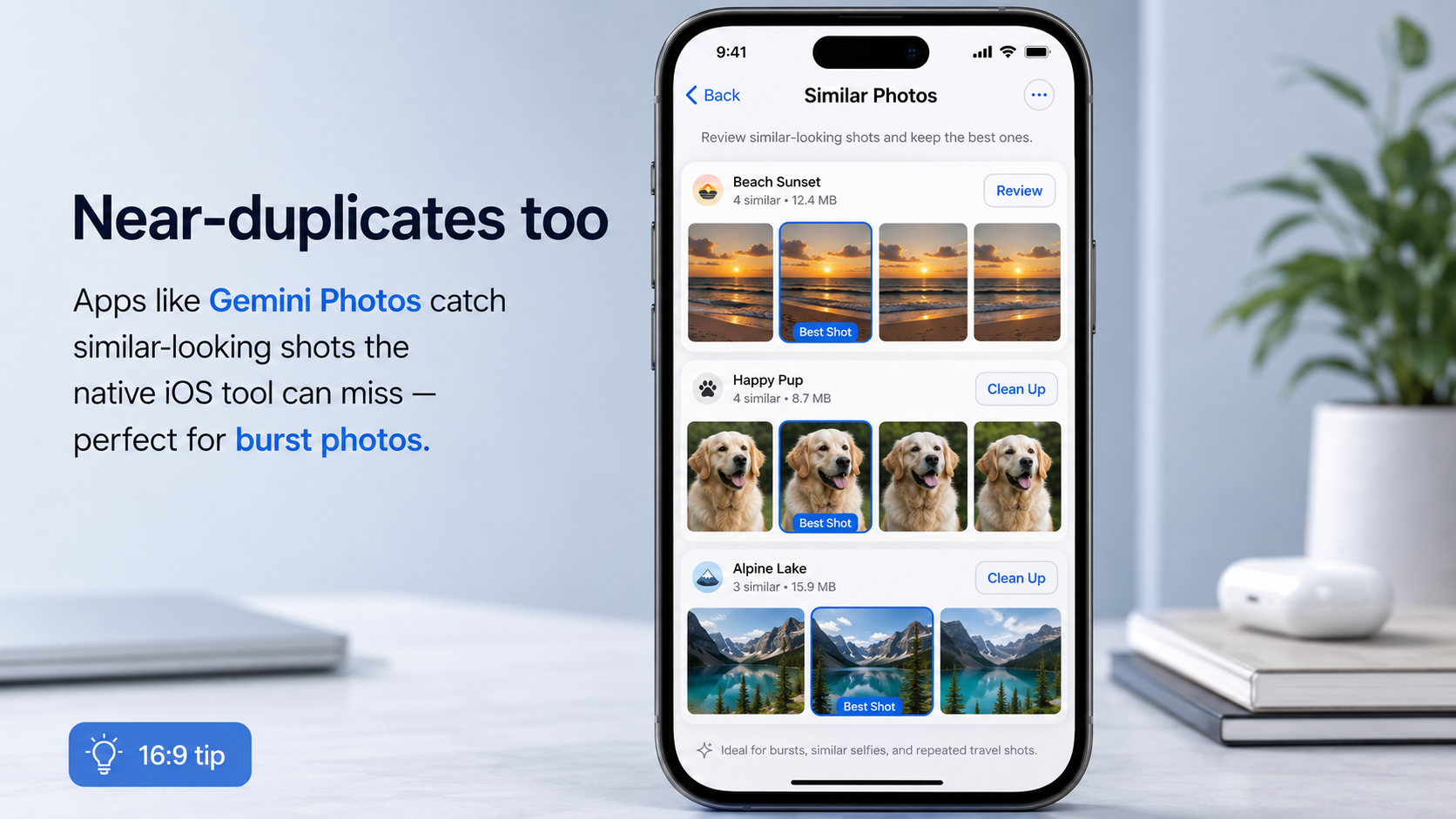
Apps like Gemini Photos catch near-identical shots that the native iOS tool misses — useful for burst photos and similar-looking images.
Third-party photo apps request full access to your Photos library. Only install apps from the official App Store with recent, high ratings. Never grant photo access to unfamiliar apps. Apple's built-in tool in Method 1 requires no third-party access whatsoever.
After deleting — what to do next
1. Permanently remove from Recently Deleted
Go to Albums → Recently Deleted. Tap Select → Delete All → Delete [X] Photos. This permanently removes them and immediately reclaims storage — both on-device and in iCloud.
2. Check how much space you freed
Go to Settings → General → iPhone Storage. Wait 10–30 seconds for it to refresh. You should see your Photos bar shrink. If not, give iCloud a few minutes to sync and recheck.
3. Enable "Optimise iPhone Storage"
Once your library is clean, go to Settings → [Your Name] → iCloud → Photos and turn on Optimise iPhone Storage. This keeps full-resolution originals in iCloud and smaller, device-optimised versions on your phone — dramatically reducing on-device storage usage over time.
4. Turn off unnecessary auto-save settings
- WhatsApp: Settings → Chats → Save to Camera Roll → Off
- Instagram: Settings → Original Photos → Off
- Snapchat: Settings → Memories → Auto-Save My Story to Memories → Off
- Screenshot to Photos: Can't disable, but consider using the Markup tool to edit-then-share instead of saving.
How to prevent duplicates going forward
Cleaning up is only half the job. Build these three habits and duplicates stop accumulating:
- Set a monthly photo review session. 15 minutes at the end of each month. Delete the blurry shots, the accidental captures, and the screenshots you no longer need. Don't let the backlog grow.
- Use one photo app, not several. Google Photos + iCloud Photos + Amazon Photos all saving the same images is a fast track to 3× the duplicates. Pick one and stick to it.
- Don't restore from old backups unnecessarily. If you set up a new iPhone, use Quick Start (direct device-to-device transfer) rather than restoring an old iCloud backup, which is more likely to reimport already-synced photos.
- Import camera roll photos to a folder system. If you also use a DSLR or GoPro and import to your iPhone via a card reader, import directly into organised albums rather than dumping everything into the Camera Roll.
We recommend a 15-minute "Photos Friday" once a month. Open the Duplicates album, merge anything new, delete blurry shots from the month, and empty Recently Deleted. That's it. Thirty seconds of prevention beats three hours of cleanup.
Quick reference — which method should you use?
| Situation | Best method |
|---|---|
| iOS 16 or later, want the fastest fix | Method 1 — built-in Duplicates album |
| iOS 15 or earlier | Method 2 — manual review + Days view |
| Duplicates album is empty but I know they exist | Method 4 — Gemini Photos or similar AI app |
| Mostly worried about WhatsApp photo clutter | Method 3 — disable auto-save in WhatsApp |
| 10,000+ photos and want the deepest clean | Method 4 — third-party app with near-duplicate detection |
| iCloud nearly full | Method 1 then empty Recently Deleted immediately |